Appearance
Creating & Editing content items
With Inbind you can easily create new collection items or edit existing collection items.
- To edit an item, simply click on the item in the collection table
- To create a new item, click on the "New item" button.
The item panel will display all of the fields that have been set up for the collection. 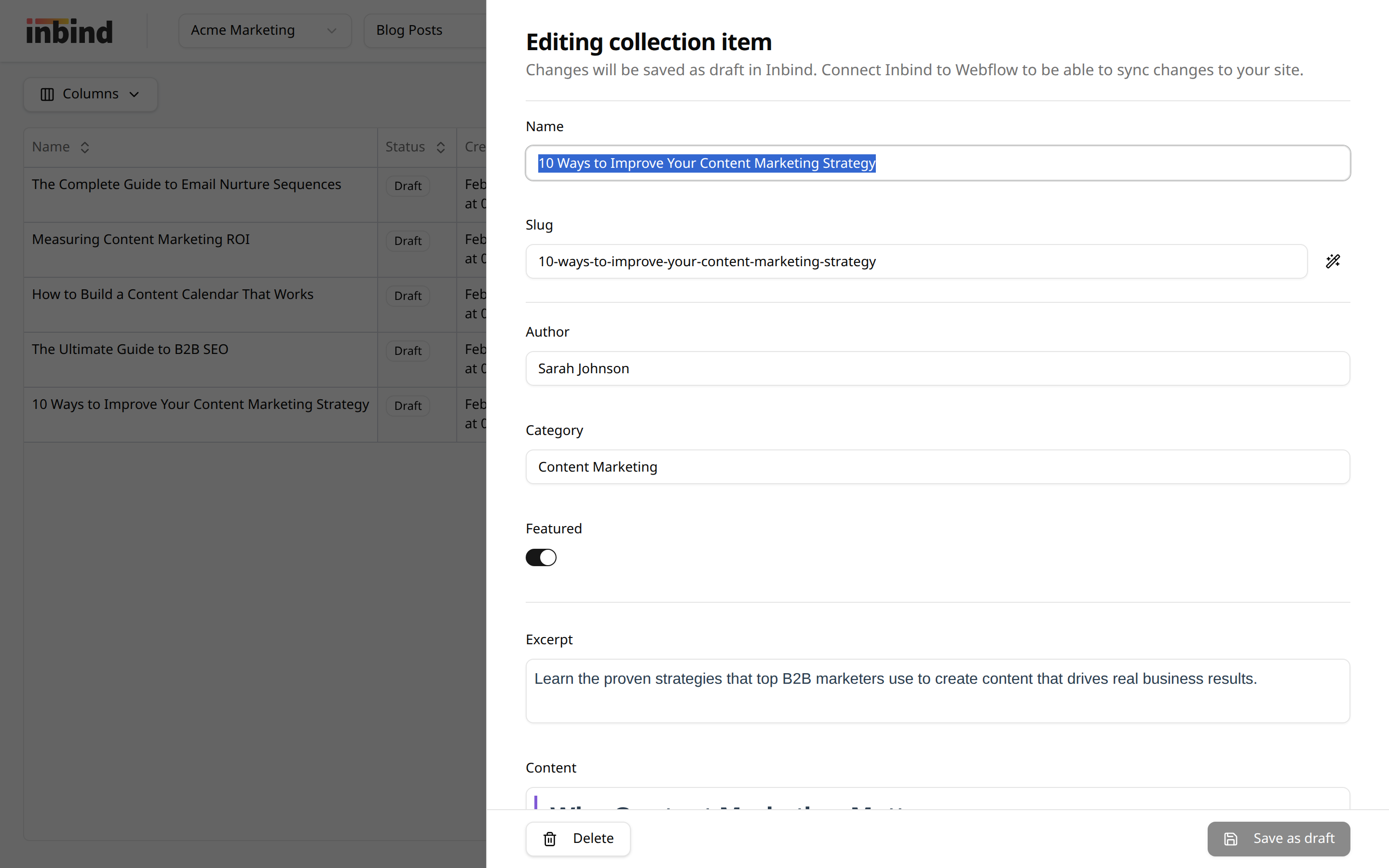
The mandatory name and slug fields are shown on the top of the panel.
When edits have been made to any field, each edited field will show an option to easily revert the field back to its previous state before the edits were made.
Collection item name & slug
When editing the name of the article, the slug will not change. The easiest way to also adjust the slug of the item is to click on the magic wand to copy the name to the slug.
Remember to set up any redirects in your platform if you need to move content to a new URL.
Image uploads
Images are uploaded to your platform's asset management system, so you can reuse them in other parts of your site.
Rich text fields
Inbind supports the following standard text editing capabilities:
- Headings from H1 to H6
- Ordered and unordered lists
- Images
- Custom Code
Additionally, Inbind provides enhanced capabilities to your rich text fields.
Dynamic heading highlighting
To ensure your articles follow the best structure and your styleguide, Inbind highlights heading content within the rich text fields.
- Heading tags are highlighted on the left of the heading text and show which level of a heading is being used
- Bolded/emphasized words are highlighted by underlining the text that has been bolded

Tables
You can add tables into your rich text. Inbind uses a standard HTML table structure that you can style to your liking. You can add or remove columns and rows directly in the editor.
Content editing with Webflow
Image uploads
For Webflow connections, images are uploaded directly to Webflow's asset manager. Inbind automatically creates an asset folder called [Inbind] CMS Assets for all image uploads when you upload your first image.
Current field limitations
There are some limitations to the field types in Webflow that Inbind currently doesn't fully support.
- Image editing
- Images can be added and removed in the rich text editor. Their position will, however, default to full-width alignment and cannot be adjusted currently.
- Option fields
- Option field values can be displayed and selected, but new options cannot be added within Inbind. New options will need to be created first in Webflow and then synced back to Inbind.
- Webflow API currently does not support updating Option values, hence Inbind is not able to fully control Option fields
If you would like to have additional capabilities in the text editor, you can always reach out to us at [email protected] and we'll do our best to add new text editing capabilities.
Need help?
Email us at [email protected] if you have any questions.