Appearance
Blocks
Blocks let you insert the content of another item's rich text field directly into a rich text field. When the referenced item's value changes, the block automatically updates everywhere it's used, so there's no need to find and update every occurrence manually.
Common use cases include reusable CTAs, legal disclaimers, author bios, shared boilerplate text, and any other content that appears in multiple items.
Inserting a block
Blocks are inserted through the slash command menu inside any rich text field:
- Place your cursor in the rich text field where you want the block to appear
- Type
/to open the command menu - Select Block from the menu
- Choose a collection, then an item, then a field
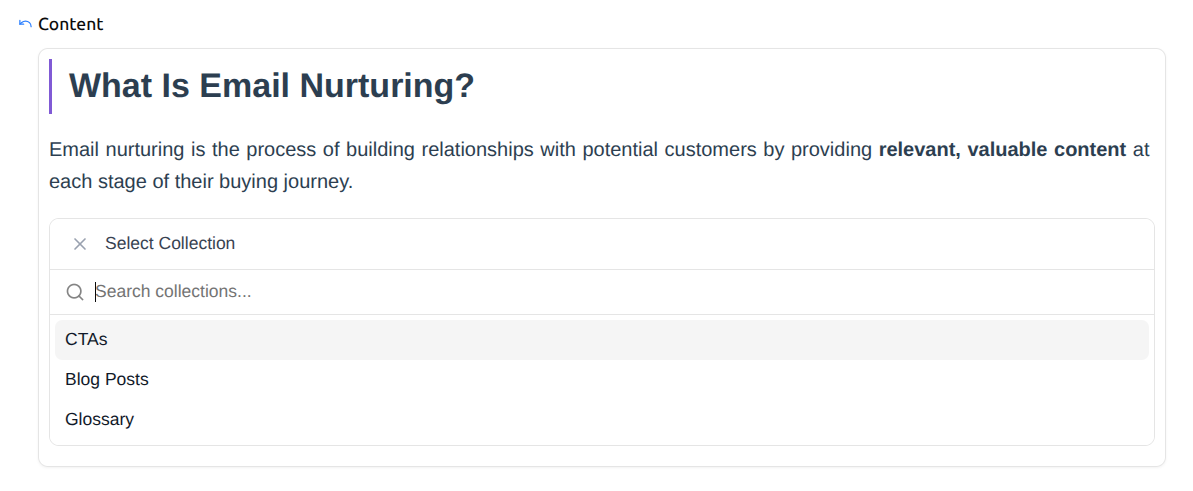
- The block is inserted with a live preview of the referenced content
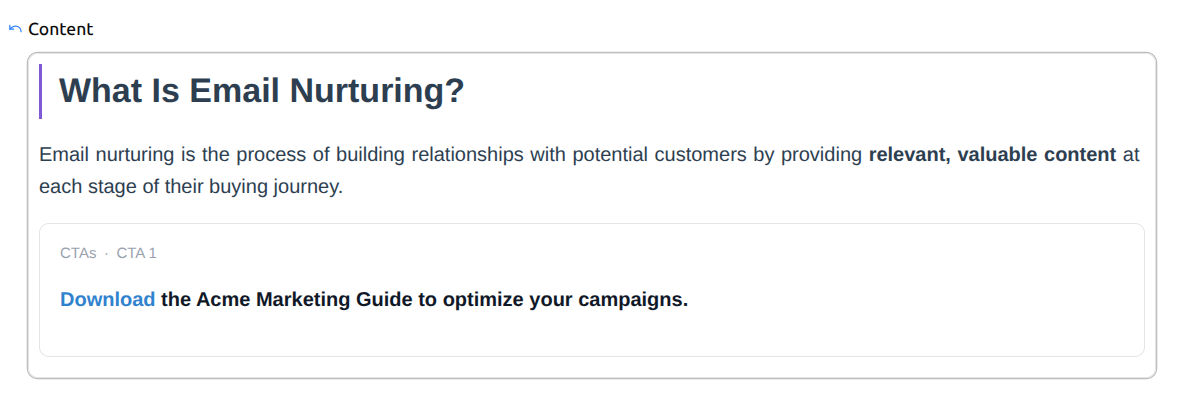
Automatic updates
When you update the referenced item's field value, all blocks that reference it are automatically re-rendered. Items containing those blocks are then published to your connected platforms with the updated content.
This means you can maintain shared content in one place and have it reflected consistently across your entire site without manual updates.
Editing and removing blocks
- To edit a block reference (change which collection, item, or field it points to), click the edit button that appears when you hover or select the block.
- To remove a block, select it and press the delete button, or use your keyboard's backspace/delete key.
Need help?
Email us at [email protected] if you have any questions.